
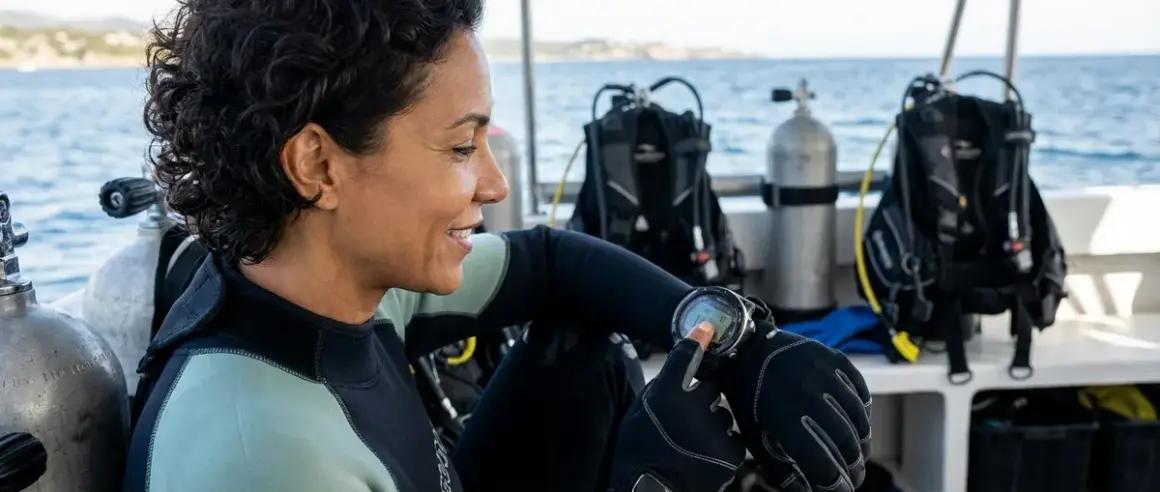

When I first heard about dive computer biometric integration, I thought it sounded like sci-fi tech reserved for technical divers or researchers. But after testing my first heart rate-enabled dive computer last year, I realized this tech is becoming accessible to regular recreational divers like me. Setting up biometric features properly can feel intimidating at first—there are sensors to pair, settings to configure, and calibrations to run—but once you get through the initial setup, these features genuinely change how you experience diving. This checklist walks you through everything you need to configure your biometric dive computer before your first dive, from sensor pairing to baseline readings, so you can focus on the reef instead of fumbling through menus underwater.
Pre-Dive Biometric Hardware Setup
Getting your physical sensors and hardware configured correctly is the foundation of reliable dive computer biometric integration. I learned this the hard way when my chest strap kept losing connection mid-dive because I hadn't seated it properly during setup.
Charge or replace sensor batteries before pairing: Most optical heart rate sensors and chest straps use CR2032 batteries or rechargeable lithium cells. Check your manufacturer's specs—some sensors last 200+ hours, others need charging every 10-12 dives. I always charge mine the night before a dive trip now after my sensor died at 18 meters during a drift dive in Cozumel.
Install the chest strap or wrist sensor according to fit guidelines: Chest straps should sit just below your pectoral muscles, snug but not constricting. Wrist-based optical sensors need direct skin contact without gaps—I had to move mine about two finger-widths up from my wrist bone to get consistent readings. If you're wearing a wetsuit, the strap goes over your exposure suit, not under it.
Wet the contact points on chest straps before activation: This confused me at first too. The electrode contacts on chest straps need moisture to transmit signals properly. I dampen mine with saliva or water before putting it on, which sounds gross but actually works way better than dry contacts. This applies whether you're using the Garmin HRM-Swim Heart Rate Monitor or similar aftermarket sensors.
Pair the sensor with your dive computer using Bluetooth or ANT+ protocols: Most modern biometric dive computers use Bluetooth Low Energy or ANT+ wireless protocols. Put your sensor in pairing mode (usually by pressing and holding a button for 3-5 seconds), then navigate to your computer's sensor menu and select "Add Sensor" or "Pair Device." The Shearwater Peregrine TX and similar models typically auto-detect sensors within a 3-meter range.
Verify signal strength and connection stability before entering the water: After pairing, check your dive computer display for a heart rate reading and signal icon. Walk around for 2-3 minutes—if the connection drops or shows intermittent gaps, re-seat the sensor or move your computer closer to the transmitter. Most sensors have a maximum transmission range of 1-2 meters underwater, which gets weaker with depth and conductivity changes.
Secure loose cables and ensure o-ring seals on charging ports: If your sensor has a charging port, make sure the protective cap or o-ring seal is properly secured. I've seen dive buddies flood optical sensors because they left the charging port partially open. Check for any visible cracks or wear on seals before every dive trip.
Test the sensor in a shallow pool or controlled environment first: Before committing to a real dive with biometric integration, I strongly recommend a shallow test dive or pool session. This lets you verify readings, troubleshoot connection issues, and get comfortable reading biometric data on your display without the distraction of current or marine life. It's also a good chance to see if your sensor shifts position when you move around or adjust your buoyancy compensator.
Bring backup batteries or a charged power bank for multi-day trips: If you're doing multiple dives per day or heading out on a liveaboard, sensor battery life becomes critical. I pack spare CR2032 batteries and a small power bank in my dive gear bag now, especially after a 4-day trip to Utila where my sensor died on day three and I couldn't find replacement batteries anywhere on the island.
Dive Computer Biometric Settings Configuration
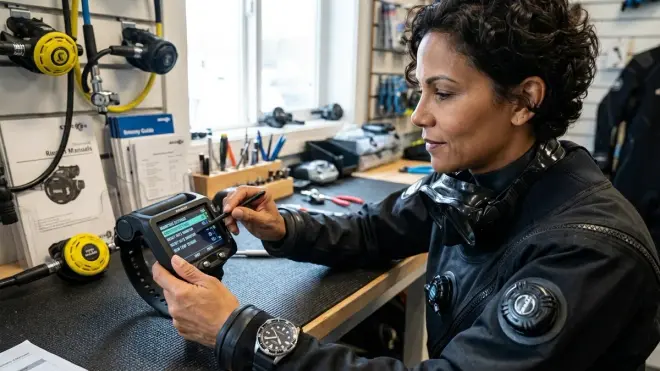
Once your hardware is talking to your computer, you need to configure the software side to interpret and display that biometric data correctly. These settings determine how your computer calculates workload, adjusts algorithms, and alerts you to physiological changes underwater.
Enable heart rate monitoring in your computer's system settings: This sounds obvious, but many dive computers ship with biometric features disabled by default. Navigate to your settings menu and toggle heart rate monitoring to "On" or "Active." Some models, like computers running the Bühlmann ZHL-16C algorithm, also let you enable heart rate-based conservatism adjustments—I keep mine enabled since I tend to get out of breath on swim-throughs.
Set your resting heart rate baseline: Your dive computer needs to know your normal resting heart rate to calculate exertion levels and physiological load accurately. Most computers prompt you to enter this manually during initial setup, but some auto-detect it by sampling your heart rate over several minutes while you're stationary. Mine sits around 62 bpm, but yours could be anywhere from 50-80 bpm depending on fitness level. If you're not sure, wear your sensor at home for 10 minutes while sitting still and note the average.
Configure heart rate alert thresholds: You can set high and low heart rate alerts that trigger visual or audible warnings during your dive. I set my high threshold at 140 bpm—if I'm hitting that underwater, it usually means I'm working too hard or stressed, and I need to slow down and focus on breathing. Some divers set low thresholds around 50 bpm to catch unusual bradycardia, but I've never needed that personally.
Adjust workload algorithm parameters if available: More advanced biometric dive computers calculate a "workload" or "exertion index" based on your heart rate variability and sustained elevation. Models like the Suunto EON Steel let you adjust how aggressively the computer factors workload into its decompression calculations. I keep mine on the moderate setting since I'm not doing technical dives or heavy exertion profiles.
Enable or disable gradient factors influenced by biometric data: Some newer computers adjust their gradient factor conservatism based on real-time physiological stress. If your heart rate stays elevated throughout a dive, the algorithm may reduce your no-decompression limit slightly to add a safety buffer. This feature is still relatively new and not universally adopted—if you want to learn more about how algorithms handle this, check out our guide to dive computer algorithms.
Set data logging intervals for biometric metrics: Your computer records heart rate data at specific intervals during your dive—usually every 5, 10, or 20 seconds. Shorter intervals give you more granular data for post-dive review but consume more memory and battery. I use 10-second intervals, which feels like a good balance for recreational diving. If you're into underwater photography like me, this data is actually fascinating to review—you can see exactly when your heart rate spikes during that perfect shot setup.
Calibration and Baseline Testing
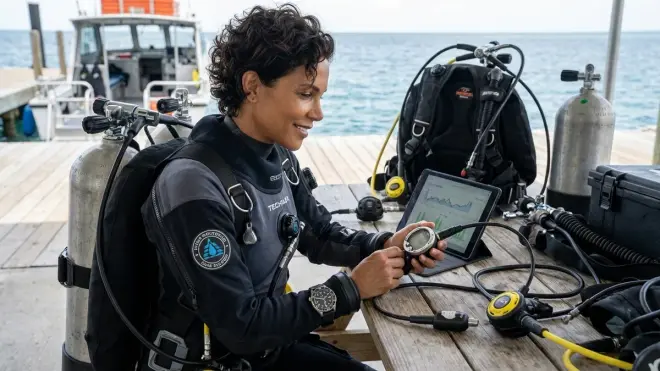
Calibration is where most people skip steps and end up with inaccurate readings. I definitely rushed through this part on my first biometric computer and spent two weeks wondering why my heart rate readings seemed way off during dives.
Conduct a dry-land baseline test with the sensor active: Before your first water session, wear your sensor and computer for 15-20 minutes on land while sitting, walking, and doing light activity. Note the readings and compare them to what you'd expect—if your computer shows 95 bpm while you're sitting relaxed, something's off. This helps you catch pairing issues, poor sensor contact, or interference from other wireless devices before you're already geared up at the dive site.
Perform a surface-interval calibration in saltwater: Saltwater conductivity can affect some sensor types, especially optical models. Before your first dive, enter the water up to chest level with your sensor active and let your computer sample heart rate for 2-3 minutes while you float calmly. This gives the sensor a chance to adapt to the aquatic environment. Freshwater conducts differently than saltwater, so if you're switching between environments, recalibrate.
Log your first shallow test dive specifically for biometric verification: I can't stress this enough—your first biometric dive should be a controlled, shallow profile where the primary goal is verifying data accuracy, not exploration or photography. Descend to 5-6 meters, hover for a few minutes, do some gentle swimming, then surface and review the logged data. Your heart rate should show a reasonable profile: slight elevation during descent and exertion, return to near-baseline during stationary hovering.
Compare dive computer readings to a secondary pulse oximeter if available: If you have access to a waterproof pulse oximeter (some divers use fingertip models in dry bags for this purpose), you can cross-check your dive computer's heart rate readings. I borrowed a medical-grade pulse ox from a friend who's a nurse and verified my computer was within 3-4 bpm consistently, which gave me a lot more confidence in the data.
Adjust sensor placement if readings are inconsistent: If your heart rate readings jump erratically or drop to zero intermittently, the sensor probably isn't making good contact. For chest straps, try moving the band up or down slightly, or moistening the contacts again. For optical wrist sensors, tighten the strap one notch or move it farther up your forearm. I had to experiment with three different positions before finding the sweet spot on my wrist where readings stayed consistent even when I bent my arm to check my dive computer display.
Document your baseline readings in your dive log: Record your resting heart rate, average heart rate during a calm recreational dive, and peak heart rate during moderate exertion. These benchmarks are incredibly useful for spotting anomalies later—if your baseline suddenly shifts by 10+ bpm, it might indicate equipment issues, changes in fitness, or even early signs of illness.
Real-Time Monitoring and Display Customization
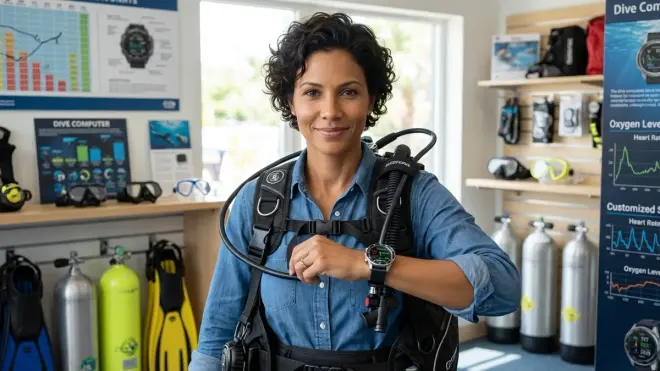
Now that your sensors are calibrated and connected, you need to configure how biometric data appears on your screen during the dive. This is where dive computer biometric integration becomes practical and genuinely useful for managing your dive experience.
Choose your primary data display layout: Most biometric computers let you customize which metrics appear on your main dive screen. I keep heart rate in the top right corner where I can glance at it without losing focus on depth and NDL. Some divers prefer a dedicated biometric screen you toggle to, but I like having it always visible. You'll want your most critical safety data—depth, time, NDL, and tank pressure if you have AI—front and center, with biometrics as secondary information.
Set up color-coded heart rate zones if supported: Computers like the Garmin Descent series let you configure heart rate zones (recovery, aerobic, anaerobic) with color-coded visual indicators. When I'm in the green zone (60-100 bpm for me), I know I'm relaxed and efficient. If the display shifts to yellow or red, I consciously slow down, check my breathing, and maybe adjust my buoyancy to reduce effort. This has genuinely helped me extend my bottom time on deeper dives.
Enable haptic or audible alerts for threshold breaches: If your heart rate exceeds your set thresholds, the computer can buzz, beep, or flash a warning. I keep mine set to a gentle vibration at 140 bpm—audible alerts underwater can be startling and distract from situational awareness. Some dive buddies disable alerts entirely, but I find the subtle reminder helpful, especially on dives where I'm carrying camera gear and not paying close attention to exertion.
Configure data fields for post-dive review screens: After surfacing, you'll want to review your biometric data alongside your dive profile. Set up your logbook screens to display heart rate graphs overlaid with depth and time. This visualization is super cool—you can literally see the moment you spotted that eagle ray or when you had to swim hard against current. It's also useful for identifying patterns, like whether your heart rate spikes consistently during descents (which might indicate anxiety or equalization issues).
Sync biometric data with dive logging apps: Most modern computers with Bluetooth connectivity can sync to apps like Subsurface, Shearwater Cloud, or proprietary manufacturer apps. Make sure your heart rate data is included in these syncs—I use Shearwater Cloud and love being able to review my physiological response to different dive conditions over time. It's been especially interesting comparing my heart rate on calm Caribbean reef dives versus surge-y Pacific sites.
Pre-Dive Verification Checklist
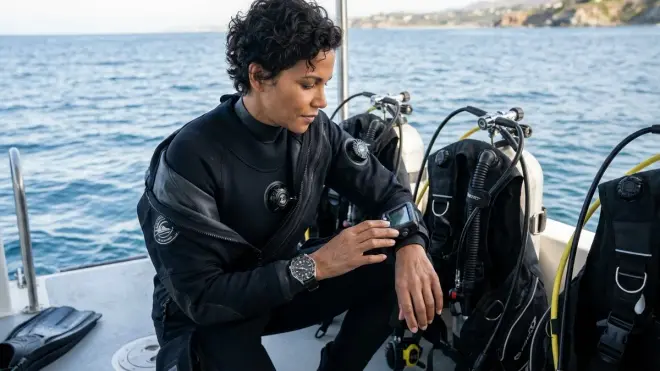
Before every single dive, I run through this quick verification routine. It takes maybe two minutes and has saved me from several potential issues, including a dead sensor battery and a loose chest strap that would have shifted mid-dive.
15 Minutes Before Entry:
- Sensor is charged or has fresh battery (green indicator light or full charge icon)
- Sensor is properly positioned and secured (chest strap snug, wrist sensor two fingers above wrist bone)
- Contact points are moistened if using chest strap
- Dive computer shows active heart rate reading (not "---" or "searching")
- Signal strength indicator shows full or strong connection
- Biometric alerts are enabled and thresholds are correct
- Display layout shows heart rate in your preferred position
At the Dive Site:
- Surface calibration completed if switching between fresh/saltwater
- Heart rate reading is reasonable for your current activity level (if you're 120 bpm while standing relaxed on the boat, something's wrong)
- Connection maintained while gearing up and moving around
Final Check Before Descent:
- Confirm heart rate display updates in real-time (watch for 10-15 seconds to verify continuous tracking)
- Verify your dive computer's other safety features are also configured correctly
If any item fails, surface immediately after descent to troubleshoot or complete the dive without biometric data rather than trusting faulty readings.
Frequently Asked Questions
Do I need to recalibrate my dive computer's biometric sensors before every dive?
You don't need a full recalibration before every dive, but you should perform a quick verification check to ensure your sensor is reading accurately. If you're switching between saltwater and freshwater, or if you haven't used your biometric features in several weeks, a brief surface-interval calibration is a good idea. Most sensors maintain calibration across multiple dives as long as they're positioned consistently and the battery is healthy. I recalibrate fully only when I notice readings drifting from my known baseline or after replacing sensor batteries.
Can dive computer biometric integration actually improve my dive safety?
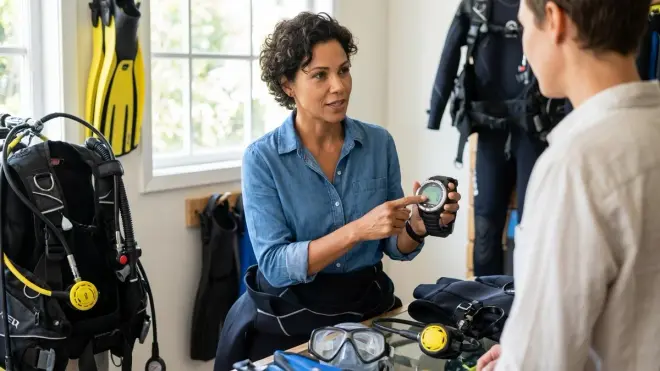
Yes, when configured correctly, biometric monitoring gives you real-time insight into your physiological stress and exertion levels that you might not notice otherwise. Elevated heart rate can indicate you're working too hard, which increases your air consumption and nitrogen absorption rate. Some newer algorithms even adjust decompression calculations based on sustained workload, adding conservatism when your body shows signs of stress. That said, biometrics are supplementary data—they enhance safety but don't replace proper training, planning, and awareness. I think of it like having an extra buddy watching my physical state when I'm focused on underwater photography and might miss my own warning signs.
What should I do if my heart rate readings seem inaccurate during a dive?
First, stay calm and continue your dive using traditional monitoring—depth, time, and air pressure—since those metrics remain reliable. After surfacing, check your sensor placement, battery level, and connection status. If readings are consistently off, try re-pairing the sensor, adjusting its position, or testing with a secondary device to verify your computer is functioning correctly. I've found that most inaccurate readings come from poor sensor contact or low batteries rather than computer malfunction. If problems persist across multiple dives after troubleshooting, consult your manufacturer's support resources or consider having the unit serviced—biometric sensors can degrade over time, especially if exposed to saltwater repeatedly without proper rinsing.
Final Thoughts
Setting up dive computer biometric integration properly takes a bit of time upfront, but once you've got everything configured and calibrated, it becomes second nature—just one more part of your pre-dive routine like checking your BCD inflator or testing your regulator. I genuinely love having that extra layer of physiological awareness underwater now. There have been several dives where I didn't realize how hard I was working until I glanced at my heart rate and saw I was pushing 135 bpm while fighting current. That visual reminder helps me slow down, breathe more deliberately, and ultimately have safer, more enjoyable dives.
If you're just getting started with biometric features, I'd recommend reading our article on choosing a biometric dive computer to understand which features matter most for your diving style. And don't skip the calibration steps—I promise it's worth the extra twenty minutes to know your data is accurate. Once you start reviewing your dive profiles with heart rate overlays, you'll wonder how you ever analyzed your dives without this information. Happy diving, and may your heart rate stay nice and calm at depth!